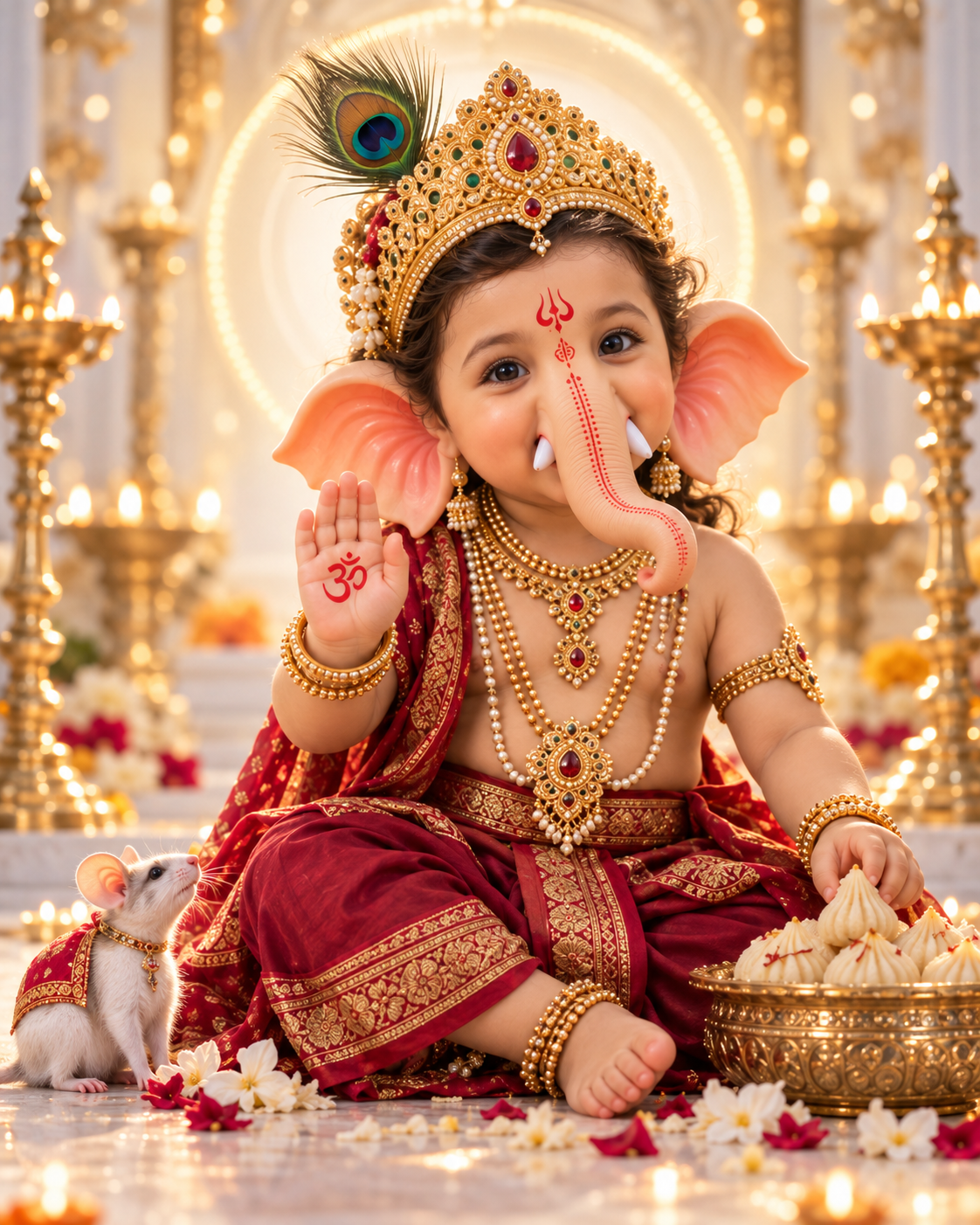
Joyful Ganesha Child in Golden Temple Glow
Explore this carefully structured AI prompt and adapt it to your own creative project. Copy the prompt, use it with your preferred AI tool, and customize the details to match your desired result.
About Joyful Ganesha Child in Golden Temple Glow
The Joyful Ganesha Child in Golden Temple Glow prompt is part of the Ganesh Chaturthi collection on PromptNI.
It provides a structured starting point for your AI project, helping you describe the subject, visual direction, atmosphere, composition and other important details included in the prompt.
You can use the prompt exactly as provided or modify individual details to better match your own idea. Small changes to the subject, setting, style, lighting or mood can create significantly different results.
How to Use This AI Prompt
Follow these simple steps to start using the prompt for your creative project.
Copy the Prompt
Use the Copy Prompt button to copy the complete prompt to your clipboard.
Open Your AI Tool
Open the AI platform you want to use for your creative project.
Paste the Prompt
Paste the copied prompt into your preferred AI tool and run it.
Customize It
Change the details that matter most to your own creative direction.
Customize the Prompt for Your Idea
Make the prompt more personal by changing the details that are relevant to your project.
Subject
Change the main person, character, object or subject described in the prompt.
Style
Experiment with different visual, artistic or creative styles.
Lighting
Adjust brightness, shadows, highlights and overall atmosphere.
Background
Replace the environment or setting with a background that fits your idea.
Tips for Better Results
A few practical ways to get more useful results when working with AI prompts.
Keep important details specific
Keep the key subject, setting and visual direction clear instead of using overly broad descriptions.
Change one detail at a time
When experimenting, modify individual elements such as style, lighting or background so you can compare results.
Add details that matter to your idea
Include useful information about appearance, composition, atmosphere or other elements that influence the desired result.
Experiment with variations
Try different versions of the same prompt to explore alternative creative directions.